
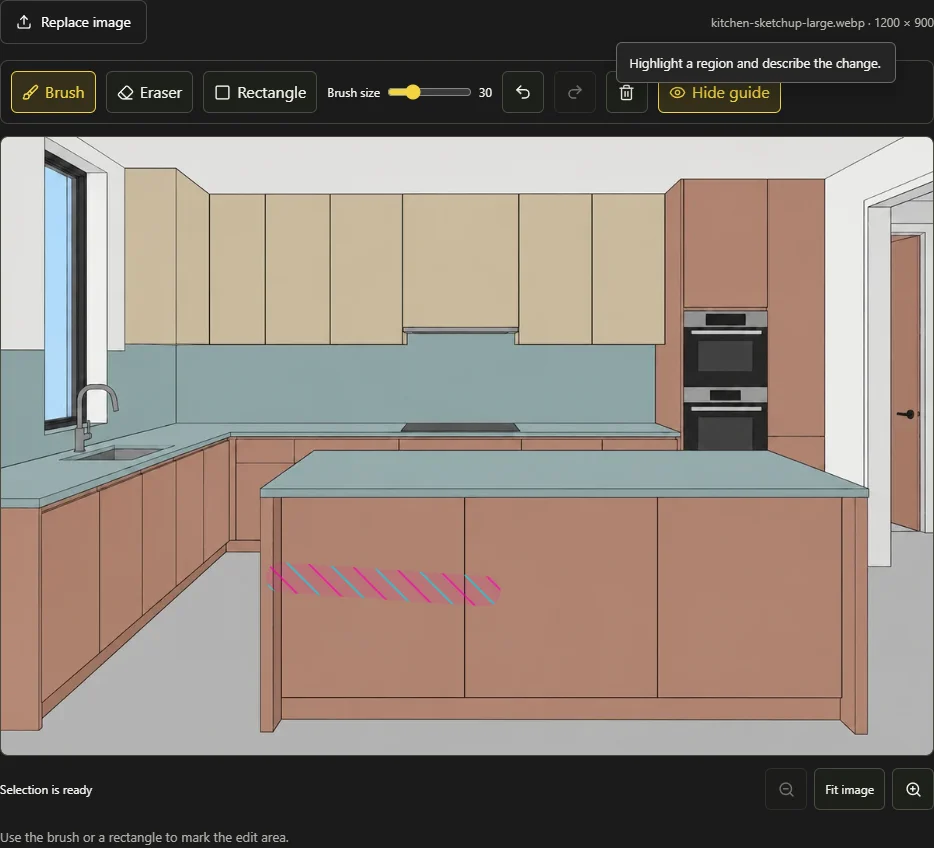
Sometimes the useful change is small: a warmer cabinet finish, a cleaner product backdrop or a different surface on one wall. Edit Area lets you mark the relevant part of an image and describe the intended result. Think of the marks as a visual location guide. They are not a native pixel mask that guarantees untouched pixels outside the selection.
Mark a region the model can understand
Use the brush for irregular surfaces, the rectangle for a broad defined area, and the eraser to remove unwanted guide strokes. Brush size, undo, redo and clear help keep the selection deliberate. Hiding the guide is useful for checking the underlying image; it does not delete the selection.
Cover the surface you mean to change without casually crossing into adjacent objects. A small necessary contact edge or shadow may need adjustment, but a wide accidental selection makes the intention less clear. Keep the original camera and surrounding context visible.
- 01Describe
State the replacement, its size, finish and intended result.
- 02Guide
Mark only the region you want the model to identify.
- 03Protect
Ask to preserve the rest and ignore annotation colour.
Know which image input is being sent
For a compatible model that accepts two references, Studio sends the clean original first and a marked copy second. The original supplies the visual authority; the second image identifies the location. With a supported single-image route, the model receives one copy of the original with the guide composited onto it.
The current guide uses alternating cyan and magenta hatching. The compiled instruction explicitly says these colours are temporary annotations, not a requested material or lighting effect. It asks for every guide mark to disappear from the completed full image.
 Pixels Art Studio
Describe the replacement, not the guide colour
Name the selected object, the desired finish and the details that must remain. If you want oak cabinetry, specify a plausible grain scale and sheen while keeping panel joints, handles and appliance positions. Avoid an instruction such as change this, which gives the model a location but no useful visual target.
Change only the marked cabinet fronts to warm natural oak with fine vertical grain and a matte finish. Preserve their geometry, joints, handles and appliance positions. Retain the source camera, lighting and all other surfaces. Remove every guide mark and return one clean full image.
Review the whole frame after the edit
Choose one model for the area edit, check the supported input mode and describe the change before requesting a quote. Review the quoted settings and points, then confirm. Variations provide alternatives for that same edit rather than separate independent selections.
Compare the result with the original at the edited boundary and across the full frame. Check nearby materials, object edges, existing text, reflections and any remaining hatch marks. Visual guidance can influence surrounding details. If preservation is inadequate, narrow the request and simplify the edit; do not treat the selection outline as a pixel-perfect protection guarantee.



A space for thoughtful feedback.
Questions, useful details and new ideas are all welcome.
Reader reviews
No published reviews yet. Your perspective could be the first.