
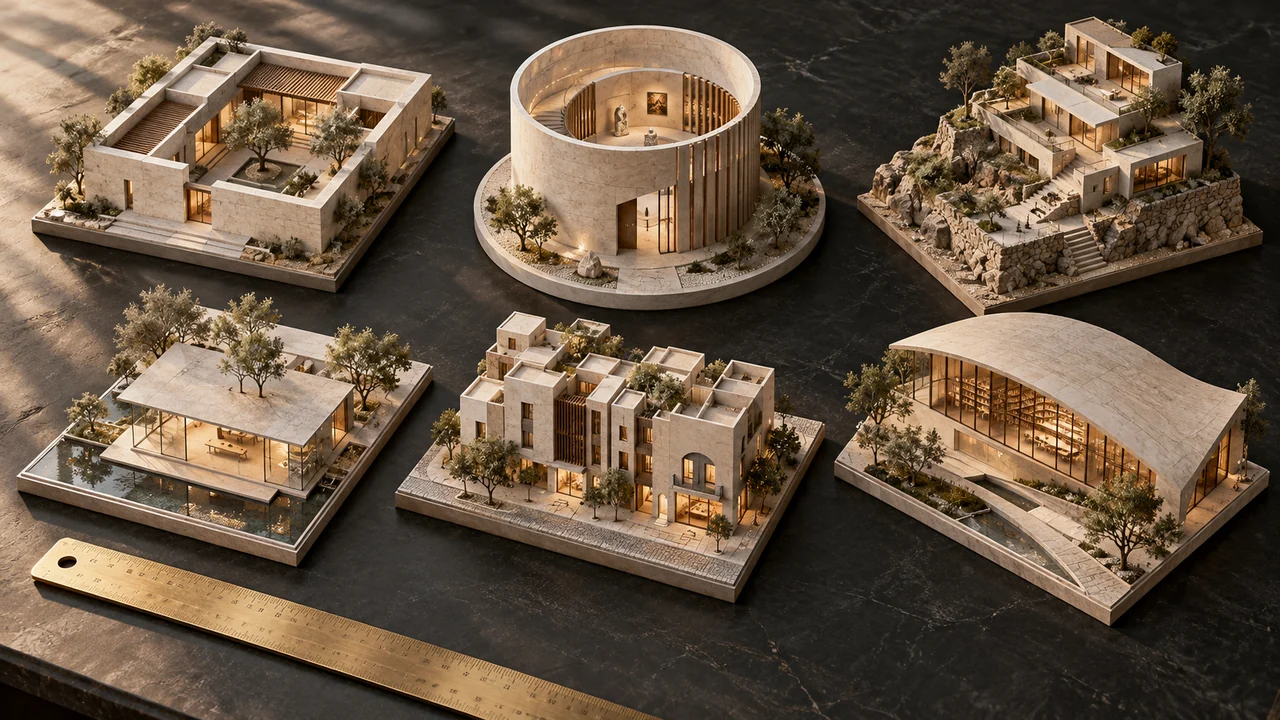
Available models and reference limits vary by workflow. Choose compatible settings and review the planned outputs and points before creating.
Batch rendering: one brief, independent source images
Use Batch when several views need the same design instruction. Each uploaded source remains a separate input, so a facade, interior and landscape view can share a brief without being blended into one scene.
- Upload the views you want to process and choose Batch.
- Write what should change and what should stay, then select compatible models and variations.
- Review the output count and server-quoted points before accepting. Find each accepted output in History.
Plan your batch as sources × selected models × variations, then review each output against its own source.
Explore the related article: One prompt, twenty images: plan a useful rendering batch →
Compare AI models from the same starting point
Select more than one compatible image model to explore different interpretations of the same source and prompt. You choose the models; the service handles eligible provider routes behind the workspace while preserving the accepted model and settings.
- Keep the input image, brief and intended output settings consistent.
- Choose the models you want to compare and review the whole batch cost.
- Compare geometry, materials, light and small details against the source before choosing a result.
Work is queued and can progress in parallel within available capacity. Timing varies with the model, settings and provider availability.
Explore the related article: Nano Banana or GPT Image? Compare them on your architecture →
Multiple references: give one result more context
Use Multi References when several input images should inform one result. A base design view, a material image and a mood reference have different roles; explain those roles rather than expecting the model to infer which image controls the architecture.
- Choose a model and settings that accept the number of references you need.
- Add the source view and supporting references in a clear order.
- Describe which image supplies geometry, materials or atmosphere, and review one combined result against that brief.
Use Batch instead when each source should produce its own independent image. Reference limits vary by model.
Explore the related article: From SketchUp, photo or plan to a clearer material concept →
Image enhancement and sketch-to-render material studies
Start with a sketch, an exported SketchUp or other 3D view, or a photograph. Describe the finishes, lighting and atmosphere you want to explore while naming the camera, openings and design elements that should remain.
- Export a clear JPEG, PNG or WebP view rather than uploading a native CAD or 3D project file.
- Write a specific material and lighting brief, or begin with a visual template.
- Use the before-and-after divider and enlarged view to inspect the result before downloading.
Compare geometry and details with the source; use your original design tools to verify dimensions.
Explore the related article: From SketchUp, photo or plan to a clearer material concept →
Edit Area: mark a location and describe the intended change
Use the visual guide to show where an edit belongs, such as a finish, a planting zone or an object. Compatible multi-input models receive the clean original and a marked guide; single-input settings receive the marked view.
- Open Edit Area, add the image and mark the intended region.
- Describe the change and the surrounding elements that should stay.
- Choose a compatible model, review the quote and compare the full result with the source.
This is a visual edit guide, not a pixel-exact mask or CAD edit. Review nearby edges, shadows and the rest of the image.
Explore the related article: Edit Area: mark the place, then describe the change →
Style Batch: one visual reference, separate target results
Choose one style reference and a set of target images to explore a shared palette, lighting, materials or photographic treatment. Each target is paired with the style reference and produces its own result; targets are not combined into one composition.
- Add a separate style reference and the target views you want to develop.
- Choose the style aspects and strength, then a model with compatible two-reference settings.
- Review the planned outputs and points, and compare each result with its own source.
Review each target for consistent materials and light; results can interpret a style reference differently.
Explore the related article: Style Batch: one reference, a separate result for each target →
Saudi architectural concepts with a regional starting point
Use Saudi architectural templates to explore a regional design direction while keeping your own site and project brief central. Consider massing, openings, local material character, shading, landscape and the difference between a regional reference and a direct copy.
- Choose the relevant regional template and read the linked official Saudi architecture guidance.
- Describe your project type, location, climate response and elements that should remain.
- Compare the concept with the original view and the regional guide before developing it further.
Use the regional guide to develop the concept, then confirm project-specific requirements with your design team.
Explore the related article: Saudi architecture: adapt a regional character to your project →
Open Studio
Available models and reference limits vary by workflow. Choose compatible settings and review the planned outputs and points before creating.