
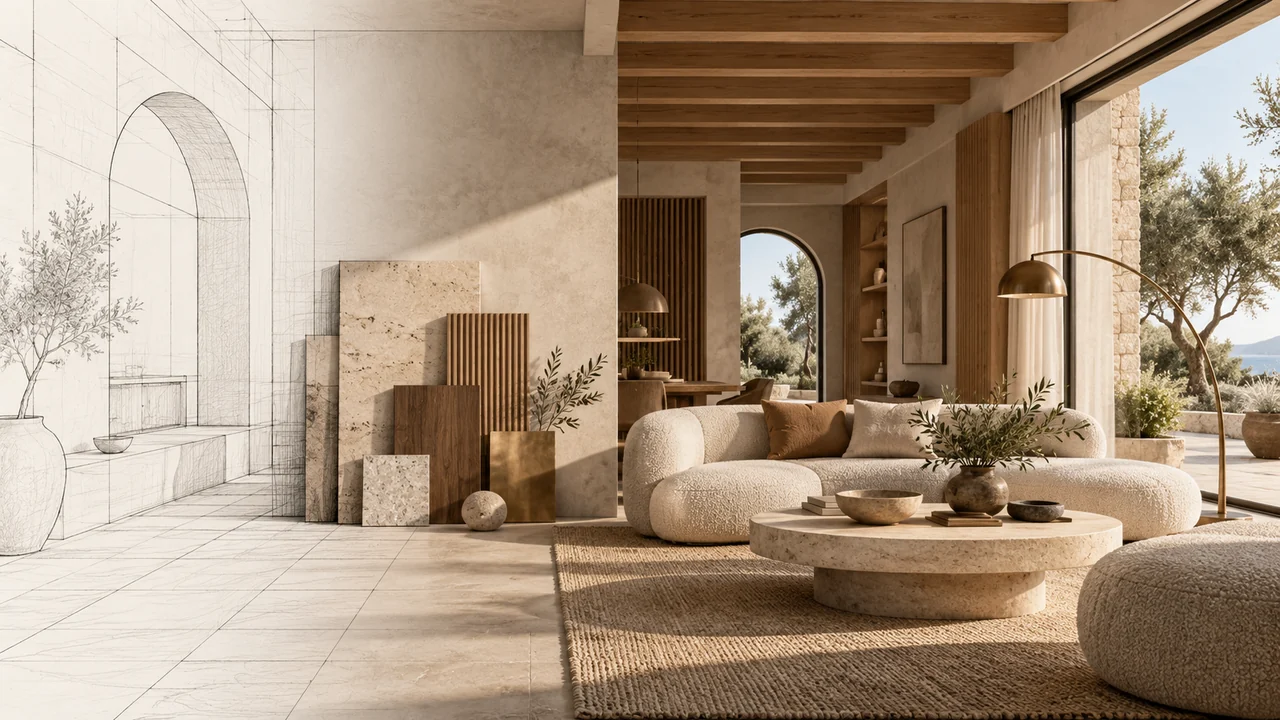
Before choosing a visual style, decide what the source image means. A photograph may already show approved finishes. A SketchUp view may use bright colours only to separate surfaces. A plan shows a layout but leaves much of the three-dimensional scene unspecified. These sources need different instructions.
Choose what to preserve and what to interpret
For a finished render or photograph, keep assigned finishes if their identity is already right. Ask for better light or more readable texture while keeping the intended timber, stone or paint.
Use screenshots or image exports from SketchUp, Blender, Revit, Rhino, Grasshopper or other 3D tools. This workflow accepts images, not native project files.
For a sketch or SketchUp export, clarify whether colours are placeholders. In the prompt builder, you can ignore those colours and request suitable materials, choose a palette, write a material schedule or map colours to specific finishes. Each approach gives the model a different brief; none turns the image into an editable BIM material database.
- 01Keep
Preserve finishes already approved by your client.
- 02Suggest
Ignore proxy colours and propose a coherent material system.
- 03Map
Name each source colour and its exact desired finish.
Make material mapping specific
Make each mapping easy to locate: name the source colour, surface and intended finish. In the kitchen below, muted terracotta marks the lower cabinets, island and tall unit; dusty teal marks the worktops and backsplash; champagne marks the upper doors. Naming the surface as well as the colour keeps the instruction precise.
Matching is approximate. Unmapped surfaces receive suggested materials, and an empty mapping does not assign finishes from the source colours. Check the completed image for material spill between plinths, flooring and walls, especially around thin edges and reflected surfaces.
Preserve this kitchen’s camera, layout, openings, cabinet divisions and appliance positions. Treat its colours as placeholders: muted terracotta lower cabinets, island and tall unit become natural oak; champagne upper doors become matte ivory; dusty teal worktops and backsplash become warm white stone. Keep soft daylight and realistic grain scale. Add no furniture, people or text.
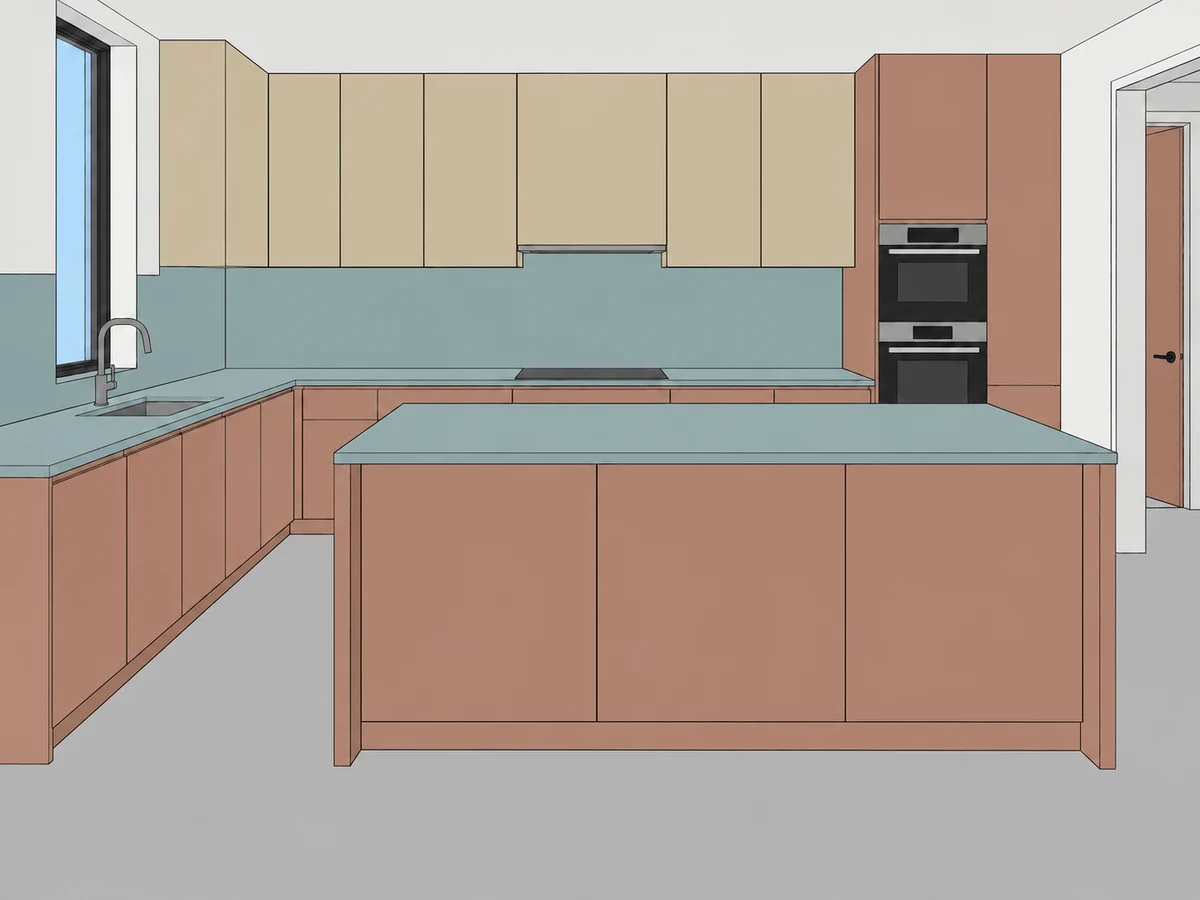 Input · muted colour regions
Use a template as a starting instruction
Browse a template’s example source and result, then read which changes it is intended to make. Applying a template supplies a prompt. It does not generate an image or use points by itself. Your uploaded images remain the sources for the draft.
Choose an exterior, interior, landscape, urban, aerial or product direction, then set materials and lighting. Use project notes for specific preservation and placement instructions.
Try the finish studies below. The same kitchen view makes it easier to judge what changed: cabinet timber, worktop and backsplash. Change one material family at a time, then compare the result with your source.
- Choose the source interpretation: finished image, sketch or a supported interior plan workflow.
- Set the material policy and add precise surface descriptions where needed.
- Choose a visual direction and light, then review the complete assembled prompt for conflicting instructions.
- Apply the prompt to Studio, select compatible model settings and check the exact points before confirmation.
One kitchen, three material directions
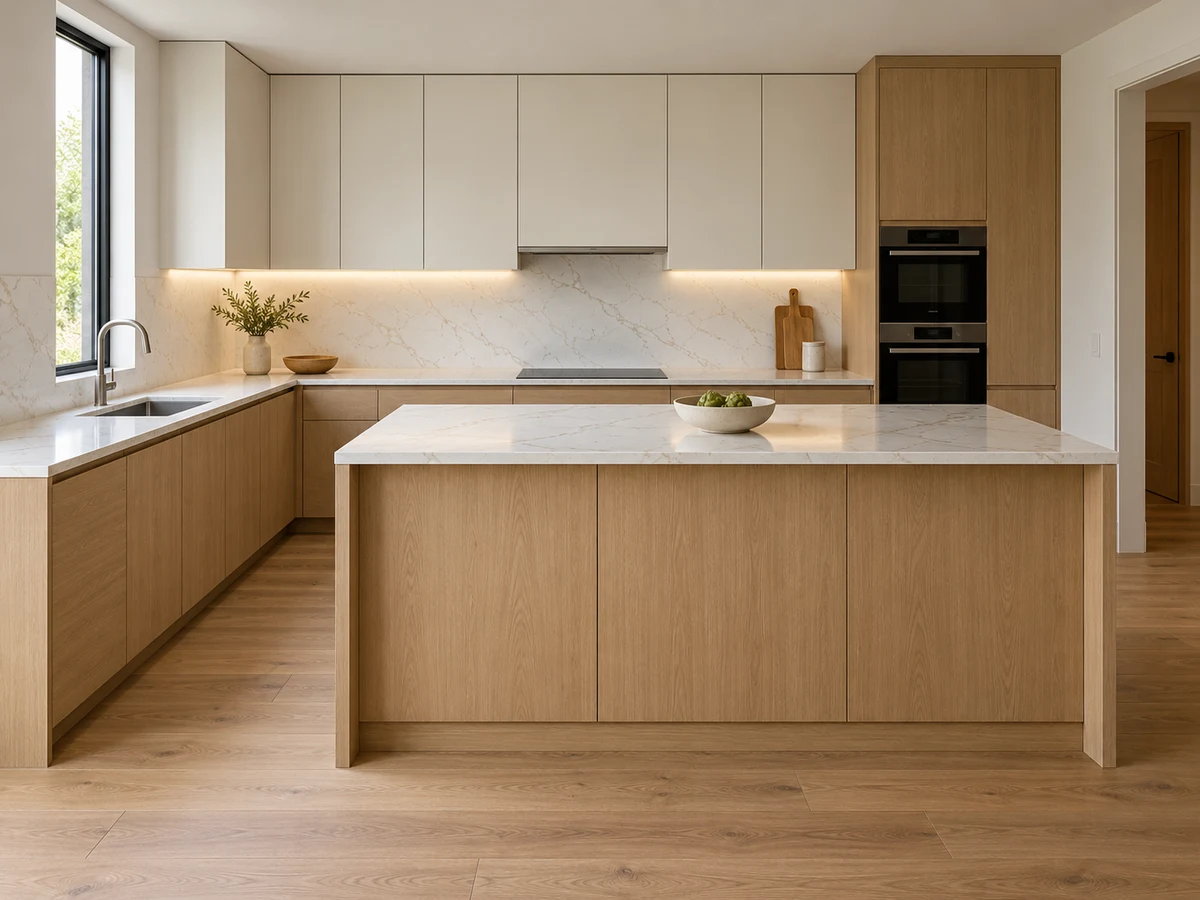
Keep the kitchen layout, camera, openings and cabinet divisions. Translate the lower cabinets and island into natural oak, upper cabinets into matte ivory, and worktops and backsplash into warm white stone. Use soft daylight and realistic material scale.
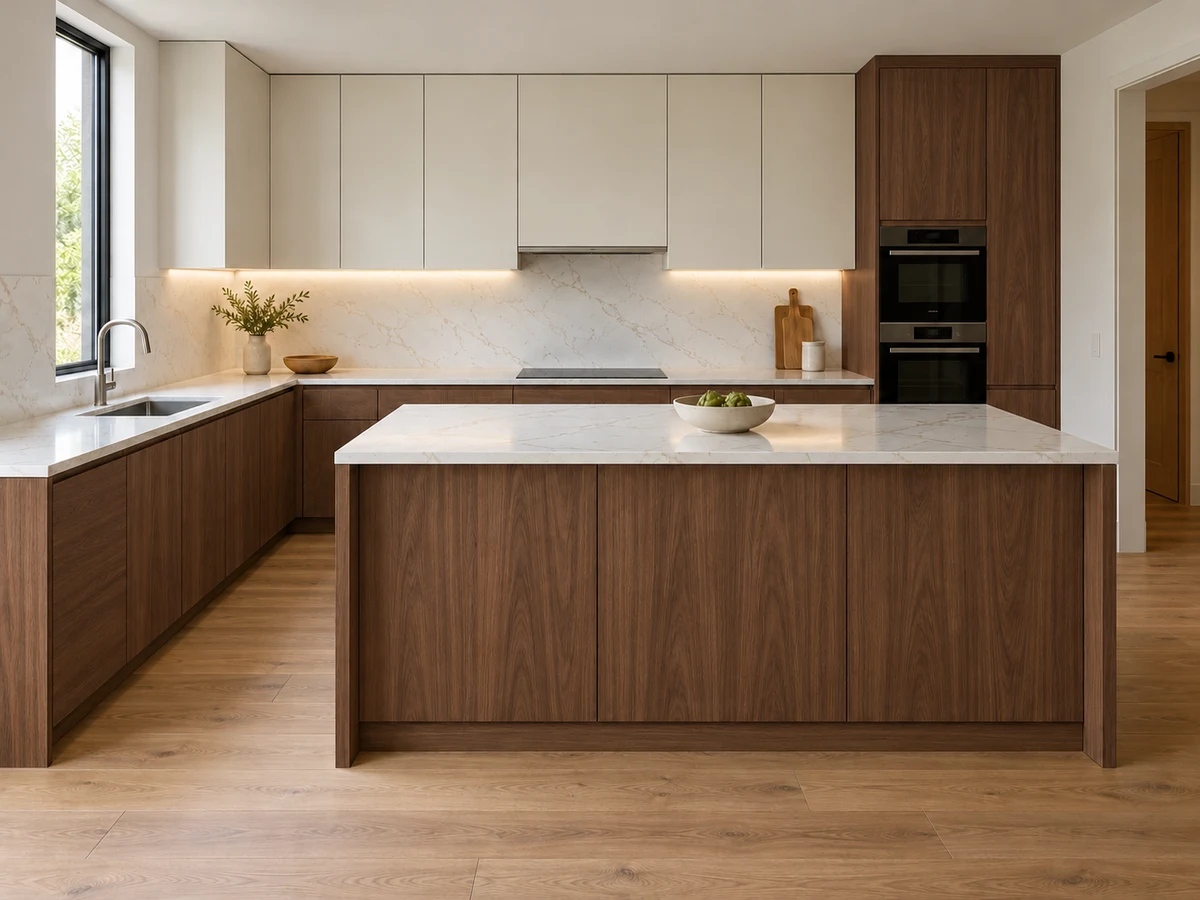
Preserve the same kitchen geometry and framing. Use warm walnut veneer on the lower cabinets, island and tall unit, matte ivory upper doors, and a pale stone worktop and backsplash. Keep grain direction coherent and reflections restrained.
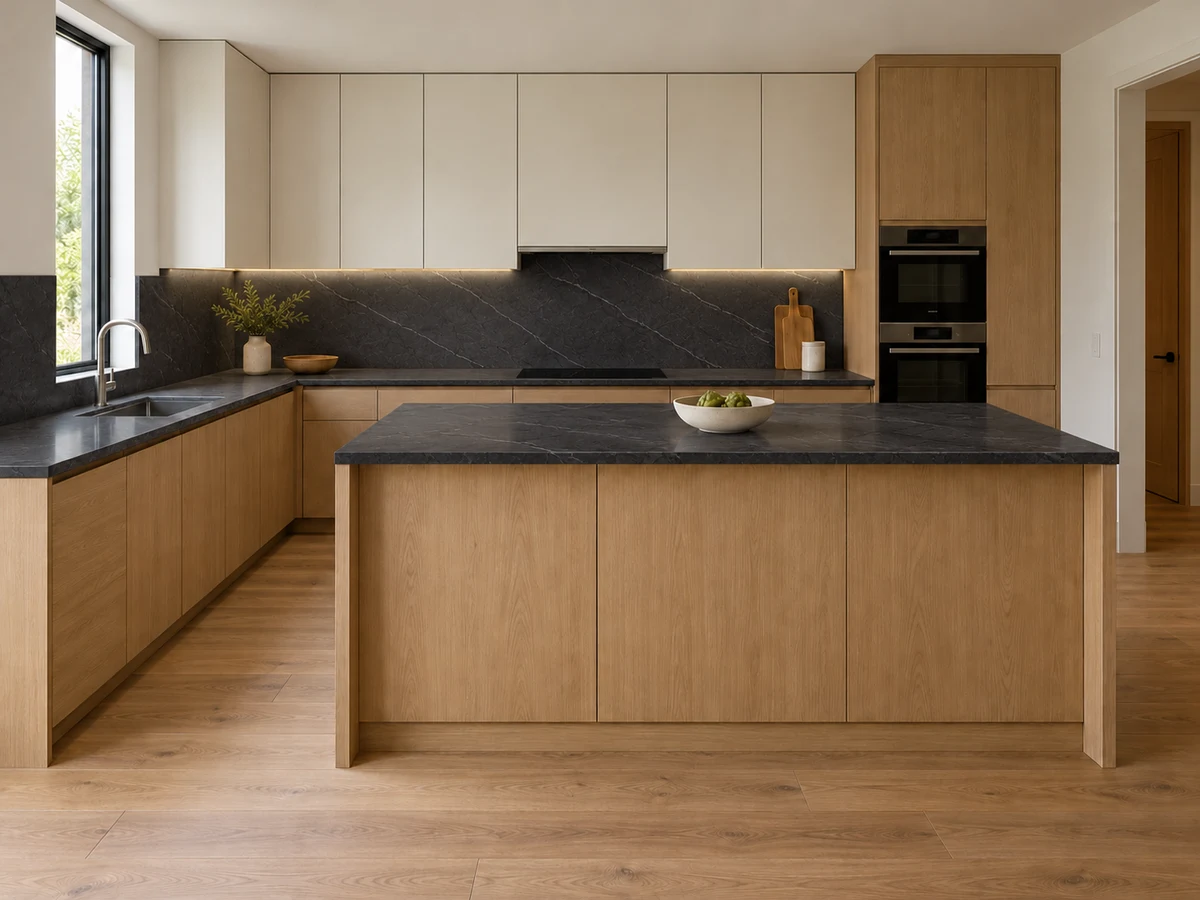
Keep the source layout, cabinet sizes and camera fixed. Use natural oak for the lower cabinets, island and tall unit, with matte ivory upper doors. Make the worktops and backsplash honed charcoal stone with fine, restrained veins. Balance daylight so the dark surfaces remain readable.
These existing finish studies illustrate the direction. Your input, prompt, model and settings affect the result.
Apply the same discipline to graphic concepts
For branding, packaging and website image concepts, define the reference, palette and exact copy. These are raster studies; prepare text and production artwork separately.
Give plans and small edits the right expectations
For a plan, choose an interior perspective or an isometric cutaway and identify the room to show. Add known ceiling heights and dimensions, and request preservation of the shown walls, openings and layout. The result is a visual concept inferred from the supplied information; it is not measured CAD or construction documentation.
If the main direction works but one finish needs revision, Edit area lets you mark a target and describe the change. The app supplies an annotated location guide to a compatible model. Review the whole result: the guide expresses your intent, but does not guarantee surgical, native-mask editing or unchanged pixels outside the target.
Sources & further reading
Model facts are linked to primary documentation. App controls depend on the selected model and settings.


A space for thoughtful feedback.
Questions, useful details and new ideas are all welcome.
Reader reviews
No published reviews yet. Your perspective could be the first.